
The short answer
Key takeaways
- Export from a desktop computer: the Zola app has no export.
- Export RSVPs gives you meal choices, as a .csv or Excel file.
- The standard import takes the CSV; AI import also reads Excel.
- Your Zola list stays as it is: the import only copies it.
On Zola
How to export your Zola guest list
Zola can export each part of your guest list: the full list, the addresses for your invitations, or your RSVPs with meal choices. All of it happens on a computer, because Zola’s app can’t export.
Open Zola on a desktop computer.
Zola says exporting isn’t available from the app right now.Go to your Guest List.
This is where you build the list and choose who’s invited.Click the dots in the top right corner.
Then select the format you’d like to receive. Pick CSV if it’s offered.Want meal choices too? Open Track RSVPs.
Click Export RSVPs in the upper right corner for a .csv or Excel file of every RSVP.
- Guest list
- Guest List › ··· › a format
- RSVPs
- Track RSVPs › Export RSVPs
- RSVP file
- .csv or Excel, with meals
- Device
- Desktop only, not the app
The Address Envelopes page has its own Export Addresses button, which downloads a spreadsheet for a calligrapher or paper supplier. A seating chart doesn’t need it.
Your file
Which Zola export to choose
For seating, the RSVP export is usually the better file: it has every guest’s answers, including meal choices for your caterer. If you haven’t collected RSVPs yet, the full guest list works too. Here is what comes across:
- Meal choices, from Export RSVPs. If we don’t match that column to Meal for you, pick it in the Meal box.
- An Excel file needs one extra step. Save it as CSV for the standard import, or give it to AI import as it is.
- Names, email and phone. First and last name columns, or one full name column that we split for you.
- Groups and households. A Party, Household or Family column becomes a household, which Auto-Seat keeps at one table.
- RSVP answers. Yes, Accepted and Will attend become Attending; No and Regrets become Declined; Pending becomes Awaiting.
- Meal and dietary columns whenever the file has them. Any column can be matched by hand.
- Addresses and table numbers stay behind. You seat guests after the import, on your own floor plan.
In Lovely Seating
Columns matched before anything is added
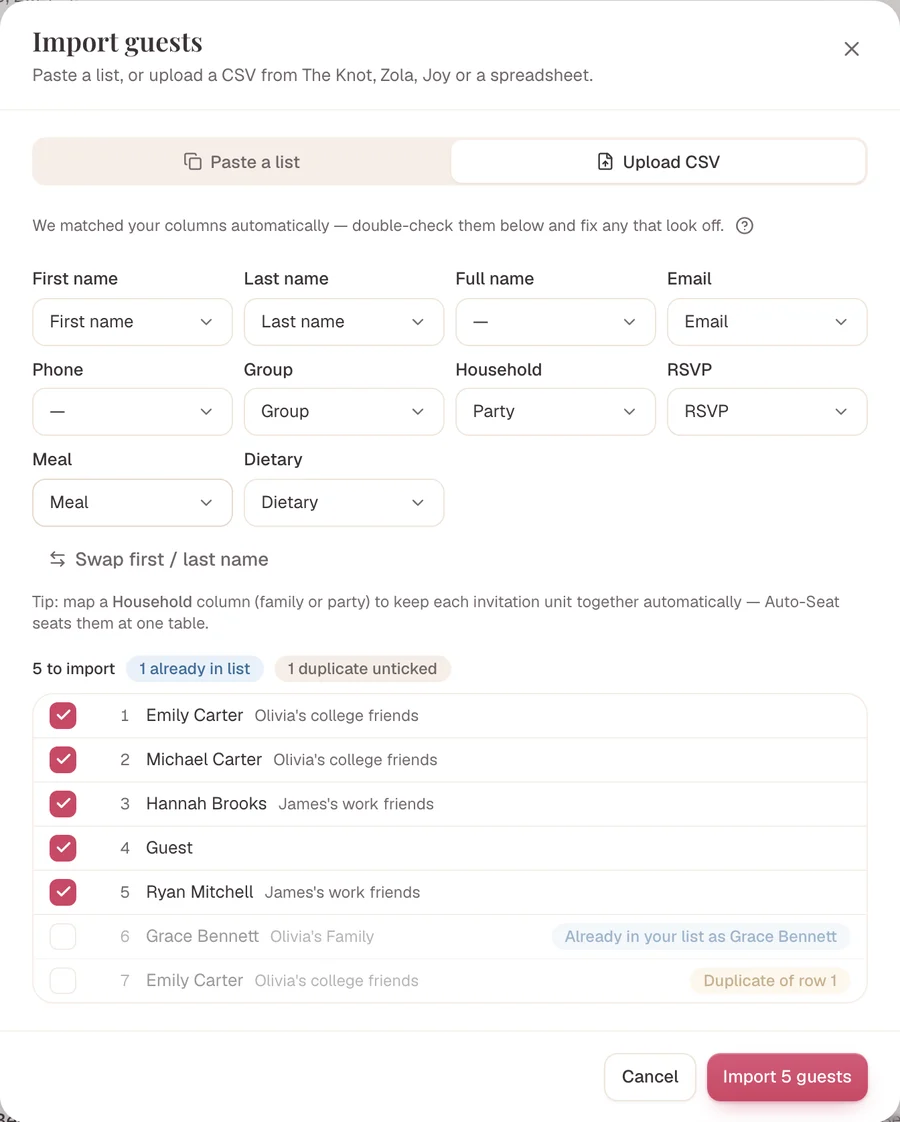
Each box in the import window is a Lovely Seating field with your file’s column picked for it. Change any box, swap first and last name, and untick rows you don’t want. Possible duplicates start unticked.
In Lovely Seating
Uploading it to your seating chart
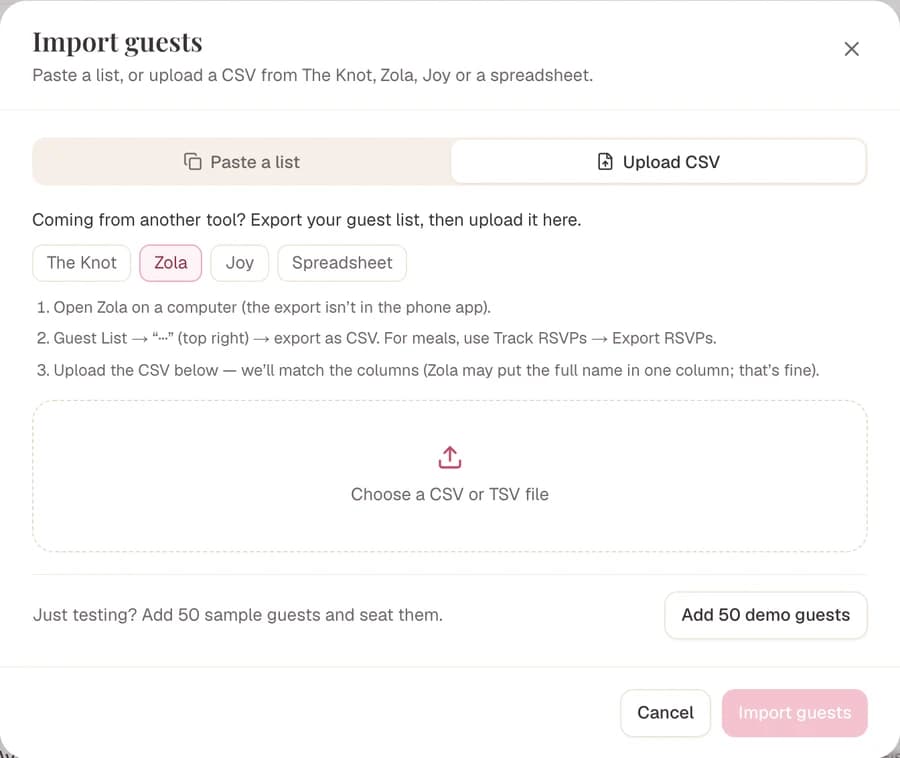
Zola has its own button in our import window, with its export steps beside the upload box. Our help article on importing from Zola, The Knot or Joy covers each field.
Open Guests and click Import.
The Import guests window opens with two ways in: Paste a list or Upload CSV.Choose Upload CSV, then pick Zola.
Under “Coming from another tool?” the export steps for Zola open beside the upload box.Click Choose a CSV or TSV file.
Pick the file you downloaded from Zola.Check the matched columns and the preview.
Guests already on your list are left out, and possible duplicates are flagged.Click Import.
Nothing is added before this click. Then we offer to seat the new guests for you.
Any file
Excel file or a messy list? Let AI read it
Zola’s RSVP export can arrive as an Excel file, and some guests may still live in a separate spreadsheet. AI import reads an .xlsx as it is. An old .xls file needs saving as .xlsx or CSV first.
In Lovely Seating
Hand AI import the file as it is
Choose Let AI do it and upload an Excel, CSV, Word or PDF list, or paste it. It finds households, groups and plus-ones, asks three to five quick questions, then Auto-Seat seats everyone.
Only names and groups go to the AI; emails and phone numbers are set aside on your device first. Each wedding gets 3 AI imports on Free and 10 on Pro, up to 500 guests at a time.
Then seat them
Seating everyone after the import
With your Zola guests in, add your tables and let Auto-Seat do the first pass. Our wedding seating chart guide covers the rest, from table sizes to who sits where.
In Lovely Seating
One click seats the whole list
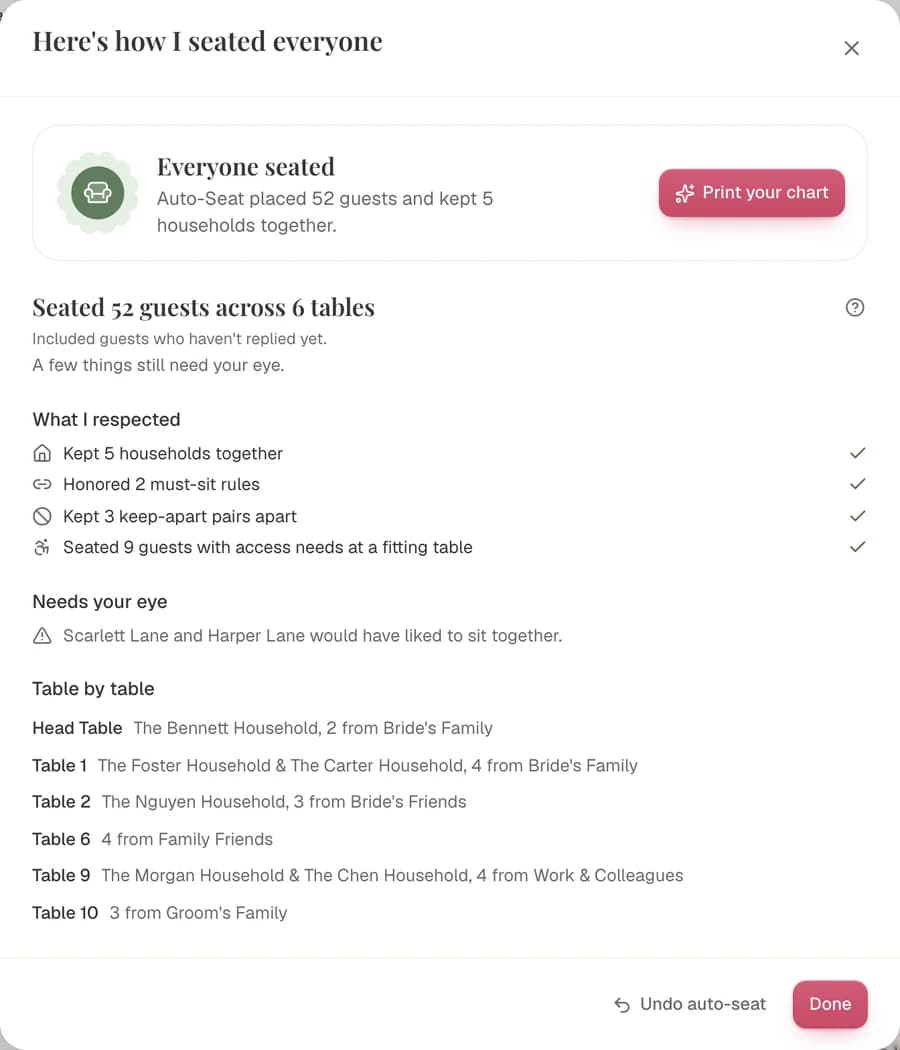
Add your tables, then Auto-Seat places everyone without a seat. Households stay together, keep-apart pairs stay apart and declined guests are left out.
The import, floor plan and Auto-Seat are free. The free plan shows up to 60 seated guests on charts, cards and the guest page; Pro is $39 once and shows everyone.
The other direction
Moving a spreadsheet into Zola instead
Looking up how to import a guest list into a wedding website? Zola has a Flexible Guest List Import that uses AI to read your spreadsheet. How its seating chart compares is in our Zola seating chart comparison.
Go to Guest List on desktop, mobile web or the Zola iOS app.
Zola says the steps are the same on all three.Choose Upload Spreadsheet, or Import from Google Sheet.
A Google Sheet must be shared with “Anyone with the link”.Review the guests, then click Finish Import.
Guests can’t be edited at this stage, so fix anything after the import.
Frequently asked questions
Can I export my Zola guest list from the app?
No. Zola says exporting isn’t available in its app right now, so use a desktop computer. Zola’s support team also offers to export the list for you if you contact them.
Which Zola export has meal choices?
Export RSVPs, on the Track RSVPs page. It downloads a .csv or Excel file of every guest’s RSVP entries, including meal choices for your caterer.
What if my file has each full name in one column?
That’s fine. Our import reads a single name column and splits it into first and last name. A name like Emily Brown + Guest comes in as Emily plus a linked plus-one.
Can I import a Google Sheet by link, like Zola does?
Not by link. Open the sheet and download it as CSV or Excel, or select the cells, copy them and paste them into the import window. A pasted table is read with its columns.
Does the import keep syncing with my wedding website?
No. The import copies your list as it is today. When new RSVPs arrive, update them here or import a fresh export: guests already on your list are skipped, so only new names are added.
Is importing my guest list free?
Yes. The import, the floor plan and Auto-Seat are free. The free plan shows up to 60 seated guests on charts, cards and the guest page, and a one-time Pro upgrade shows everyone.
Sources
Every fact about Zola on this page comes from Zola’s own pages below, which we read on 20 November 2026. Menus change from time to time, so if a button has moved, look for Export or Download on your guest list.
- Zola: Can I export or print my guest list from Zola? (the ··· menu, Export RSVPs, desktop only)
- Zola: What is the Guest List tool? (Track RSVPs, Address Envelopes, Export Addresses)
- Zola: What is the AI Guest List Import tool? (importing a spreadsheet or Google Sheet into Zola)

Ready to seat your Zola guests?
Upload your Zola export, check the columns and let Auto-Seat place everyone. Free to start; Pro is $39 once for every guest.