
Import your wedding guest list into Lovely Seating
Bring the list you already have — a CSV, rows pasted from Excel or Google Sheets, or an export from The Knot, Zola or Joy. Let AI work out the families, groups and plus-ones and seat everyone, or map the columns yourself.
Either way it’s not a blind upload: you check a summary of what will be added first, and nothing enters your plan until you confirm.
Free to start·No credit card required·Nothing is added until you confirm
Turn a messy guest list into a seated chart in about a minute
Choose Let AI do it in the Import window, then upload a CSV, TSV or text file — or paste the list however it’s written. “The Smith family (John, Jane, kids Max & Lily)” becomes four guests in one household; “Ana + 1” becomes Ana and a linked plus-one.
- Finds households, groups, sides, kids and plus-ones
- Asks 3–5 tap-to-answer questions, like who shouldn’t sit together
- Shows a summary you confirm, and lets you drop any rule
- Imports everyone, adds tables and seats them with Auto-Seat
The AI only reads the list and turns your answers into seating rules. Our rule-based Auto-Seat does the seating, so you can undo it in one click or move anyone afterwards. Email addresses, phone numbers and street addresses are removed on your device before anything is sent. See how AI import works step by step.
Prefer to map the columns yourself?
The guided import matches your columns, then hands you a preview to check before anything is committed. It has no run limit.
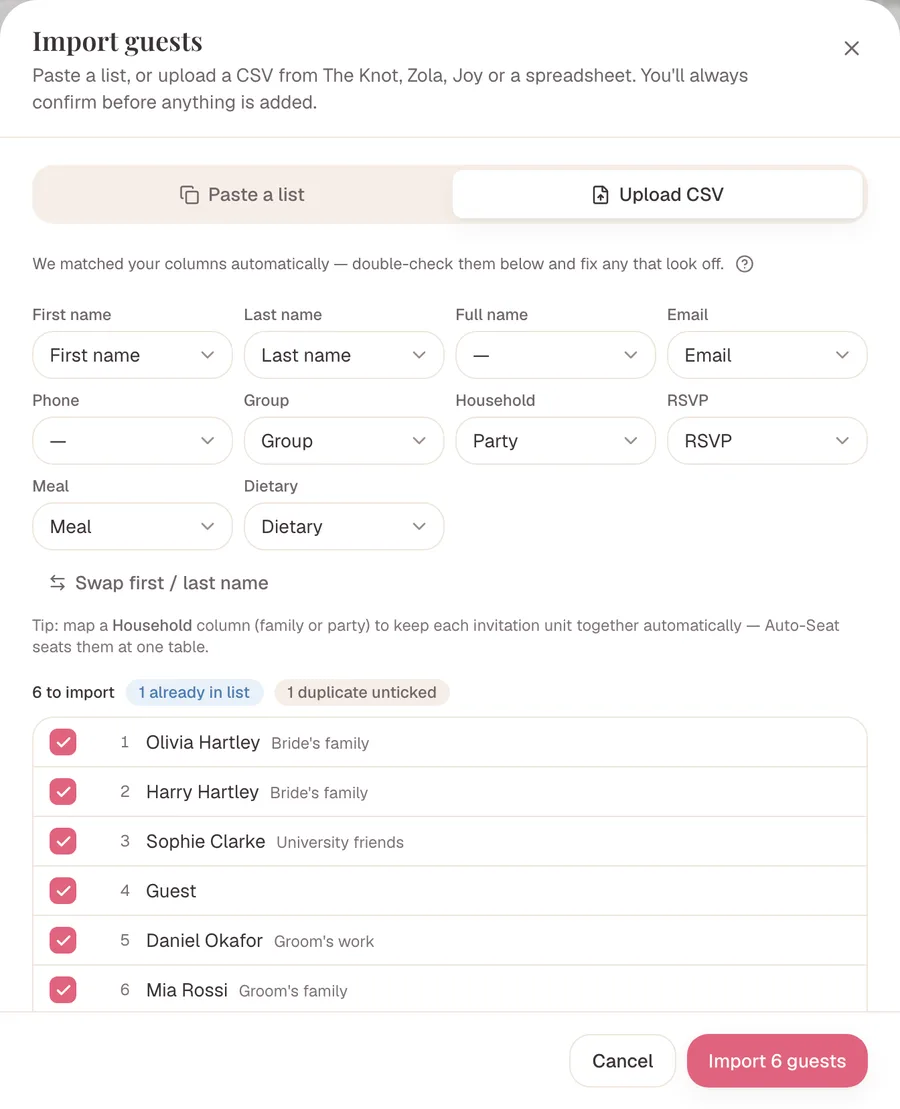
Maps your columns automatically
Spreadsheets never share the same headings. Lovely Seating matches columns like Guest, Party, RSVP and Meal to the right guest fields — and you can change any mapping it gets wrong.
Recognises couples & plus-ones
“Name + Guest” or “+1” becomes a separate record linked to its host, sharing their RSVP and group.
Standardises RSVP wording
“Yes”, “No”, “Tentative”, “Pending” — different words for the same status are normalised; anything unclear is flagged for you.
Flags likely duplicates
Matches by similar name or shared email — both inside your file and against guests already in the plan.
Confirm before anything is added
See exactly how many guests will be added, skipped or excluded — then commit only the rows you approved.
How do I bulk import guests into wedding seating software?
Step 1
Paste or upload
Copy rows from Excel or Google Sheets and paste them, or upload a CSV file. Plain, bulleted and numbered lists all work.Step 2
Pick AI or columns
Let AI read the list and ask a few questions, or check the proposed mapping of name, RSVP, group, meal and more yourself.Step 3
Review & resolve
Scan the preview for recognised plus-ones, possible duplicates and guests already in your list. Include or exclude each row.Step 4
Confirm import
Approve the final set and only those records are added. With AI import, tables and Auto-Seat follow straight away.
Start with the list you already have
Most couples and planners begin in a spreadsheet. Keep that work — don’t type every name again.
- Paste a plain-text guest list
- Copy rows from Microsoft Excel
- Copy rows from Google Sheets
- Upload a CSV file
The importer handles the usual spreadsheet quirks — commas, tabs and quoted values — and tidies up simple pasted lists that carry bullets or numbering. Rather not upload it yourself? Reply to one of our emails or send the list in the in-app chat, and we turn it into an AI import draft: open the link, review the summary and add the guests.
Can I import my guest list from The Knot, Zola or Joy?
Yes: download your guest list from The Knot, Zola or Joy as a CSV and upload it to the importer. It has a short guide for each, and recognises their headings — The Knot, Zola and Joy’s “Party”, Joy’s “Tags”, and Zola’s “Will attend” RSVP wording. There’s no live connection: it’s a one-time CSV import, so later changes on those sites don’t sync across.
From The Knot
- On a computer, open Guest List and click Download List → Entire Guest List (choose “by individuals” so each guest is a row).
- Upload the CSV in Lovely Seating’s importer and check the proposed columns.
- The Knot sometimes leaves the meal column blank, so double-check meals after importing.
From Zola
- On a computer (the export isn’t in the phone app), open Guest List → the “···” menu → export as CSV. For meal choices, use Track RSVPs → Export RSVPs instead.
- Upload the CSV. A full name in one column is fine.
- Review plus-ones, RSVPs (“Will attend” is recognised) and duplicates, then confirm.
From Joy
- Open your Guest List on withjoy.com and click Export All Guests.
- Upload the CSV. Joy’s Tags become groups and Party becomes the household.
- Review the preview and confirm.
Which spreadsheet columns does the importer recognise?
Headings aren’t case-sensitive, and you can change any mapping before importing.
| Field | Recognised headings |
|---|---|
| Name | Name, Names, Guest, Guests, Guest name, Full name — or First name / Given name + Last name / Surname / Family name |
| Email, E-mail, Email address | |
| Phone | Phone, Mobile, Phone number, Mobile phone |
| Group | Group, Category, Tags (Joy) |
| Household | Household, Family, Party, Party name (The Knot, Zola, Joy) |
| RSVP | RSVP, RSVP status, Status, RSVP response — values like Yes, Attending, Accepted, Will attend, No, Declined |
| Meal | Meal, Meal choice, Meal preference, Meal option, Entree, Food choice |
| Dietary | Dietary, Dietary notes, Dietary restrictions, Allergies |
| Table | Table, Table name, Table number |
Starting from scratch? Use this header row
Download the sample CSV (or copy the lines below), open it in Excel or Google Sheets, replace the sample guests with yours and upload it. “+ Guest” becomes a linked plus-one. Want a fuller layout? See the wedding guest list template.
First name,Last name,Party,Group,RSVP,Meal,Dietary,Email,Phone
Olivia,Bennett,Bennett family,Bride's family,Yes,Chicken,,olivia@example.com,
Harry,Bennett,Bennett family,Bride's family,Yes,Fish,Nut allergy,,
Sophie,Clarke + Guest,Clarke,University friends,Pending,,,sophie@example.com,Review problems before anything is added
The review step is where you decide what actually enters your wedding plan. Rows are sorted into clear states — ready, already in your list, or a possible duplicate.
A flagged match is never treated as a duplicate for you. Lovely Seating shows both records side by side — a shared name or email is a suggestion, not a decision — and you choose whether to keep both or skip one.
Nothing is merged or removed automatically. The cleanup stays visible and in your hands.
Example: importing Olivia & James’s spreadsheet
Fictional sample data, used to demonstrate the product.
Olivia and James keep their 126 guests in a Google Sheet. It isn’t perfectly tidy — some cells say “Yes” and others “Attending”, a few couples share one row, and one guest was already added by hand.
They paste the sheet in. Lovely Seating proposes the column mapping, splits the couples and plus-ones into linked records, and standardises the RSVP wording. During review they fix one mis-read column, exclude an old supplier contact, and confirm the guest who already existed.
They approve — and land an organised guest list ready for tables and seating, without rebuilding all 126 records by hand. From there they track meal choices for their caterer as the last replies come in, and later export a printable seating chart and matching place cards.
Retype every guest — or review an organised import
Your spreadsheet already holds the work. The only question is how it gets into a seating plan.
Slow and error-prone
- Add each guest one at a time
- Re-enter RSVP and meal details field by field
- Recreate every plus-one relationship
- Risk skipping a row or entering a name twice
- Cross-check the result against the original file
Reviewed and structured
- Paste or upload the data you already have
- Confirm the proposed column mapping
- See couples and plus-ones interpreted for you
- Resolve likely duplicates before they land
- Confirm the final set — nothing added blindly
The importer doesn’t remove the need to review — it makes that review visible and structured, before the data ever enters your plan.
Made for couples and wedding planners
For engaged couples
Already started a guest list in Sheets or Excel? Bring it over in minutes and keep planning — no fresh start, no re-typing every name.
For wedding planners
Onboard a new client’s list fast. Import their spreadsheet, review it once, and move straight into building their seating plan.
What to know before importing
It’s a one-time import, not a live sync
You can paste or upload your spreadsheet or a CSV from The Knot, Zola or Joy, but later edits to that file won’t flow back in. After importing, Lovely Seating becomes the working plan — make changes here.
Paste from Excel, upload a CSV
You can copy rows straight from Excel or Google Sheets, and upload CSV files. A native .xlsx file upload isn’t supported — export to CSV, or simply copy the rows and paste them.
Possible duplicates still need your call
Duplicate detection surfaces likely matches by name or email. It won’t assume two similar records are the same person — you review each one and decide.
Only AI import seats people for you
The guided import sets up organised guest records — names, RSVPs, meals, groups, households and linked plus-ones — and assigning tables and exact seats comes next. AI import ends with Auto-Seat, and even then the AI never picks the seats; our rules do.
Guest list import questions
Can I upload an Excel file?
You can copy rows straight from Excel or Google Sheets and paste them in, and you can upload CSV files. A native .xlsx upload isn’t supported — export your sheet to CSV, or just copy the rows and paste them.
Do my spreadsheet columns need specific names?
No. Lovely Seating auto-detects common headings — Name or First/Last name, Email, Phone, Group, Tags, Household, Party, RSVP, Meal, Dietary and Table — and proposes a mapping. You can adjust any column before continuing.
Can I import my guest list from The Knot, Zola or Joy?
Yes. Export your guest list from The Knot, Zola or Joy as a CSV and upload it — the importer has step-by-step instructions for each and recognises their column names. It’s a one-time import, not a live sync.
Will my addresses, dietary needs and RSVPs come across?
RSVP status, meal choice, dietary notes, email, phone, group and household (party) all import. Mailing addresses aren’t stored in Lovely Seating, so they’re left behind. Age, side and accessibility needs are set after import — meal and side can be bulk-edited across many guests at once.
Is importing free?
Yes. Pasting or uploading your guest list is included on the Free plan, with unlimited guests. AI import is free too: each wedding gets 3 AI imports on Free and 10 on Pro, and runs that fail don’t count.
Can I bulk import all my guests at once?
Yes. Paste or upload the whole list in one go — hundreds of rows are fine — and review the preview before confirming. The guided import has no guest limit; AI import reads up to 500 guests per run.
What does the AI see when I use AI import?
Only names and group labels, sent to our AI provider, Anthropic, to organise the list; they aren’t used to train AI models. Email addresses, phone numbers and street addresses are removed on your device first. Emails and phones are then added back to the right guests (you can opt out on the summary); addresses aren’t imported.
Does AI decide where my guests sit?
No. AI reads your list and turns your answers into seating rules, like keeping two guests apart. Our rule-based Auto-Seat places everyone, with a table-by-table recap and one-click Undo, and you can move anyone afterwards.
What’s the safest way to move my guest list from another wedding tool?
Export it from the old tool as a CSV and keep that file as your backup. Import it here, check the column mapping, plus-ones and duplicates in the preview, and confirm. Nothing is added until you do, and the original tool isn’t changed.
What happens if a guest already exists?
The importer flags them as already in your list and leaves them out by default. You review the match and decide — keep the records separate or exclude the imported row.
Can I exclude individual rows?
Yes. Every row has a checkbox in the review step, so you include or exclude guests one at a time before confirming the import.
Does Lovely Seating automatically delete duplicates?
No. Possible duplicates are flagged for review, never removed on their own. You decide what happens to each one — nothing is deleted just because a name or email looks similar.
Are plus-ones handled automatically?
Yes. “Name + Guest” or “+1” becomes a separate guest record linked to its host, sharing the host’s RSVP, group and household so they’re seated together.
Can I export my guest list as a CSV?
Yes. Export guest list sits next to Import in the Guests toolbar. The guest list CSV (names, RSVP, meals, groups) is free; the full version with each guest’s table and seat is part of Pro.
Will future edits to my spreadsheet stay in sync?
No. Import is a one-time transfer, not a live connection. Changes you make to the original spreadsheet afterwards won’t update your Lovely Seating plan.
Is anything added before I confirm?
No. The importer only ever proposes rows for review. Nothing enters your guest list until you press confirm — so you can always back out.
Imported and ready to seat? Follow how to make a wedding seating chart.
After the import: guides and templates
- Wedding seating chart etiquette Who sits where, now that every guest is in the plan.
- The QR code wedding seating chart Let guests look up their table from your imported list.
- Wedding seating chart templates Chart styles your imported guests can fill.
- Wedding place card templates Cards made from the names you imported.
Bring your guest list into one seating plan
Paste the list you already have, review how it’s organised, and start planning — without retyping a single guest.
Free to start · No credit card required · Nothing is added until you confirm