

The short answer
Key takeaways
- Download List sits at the top right of your Knot guest list.
- Pick the entire list; labels and RSVP tables are separate downloads.
- Every download is a .csv file, ready for the standard import.
- Check the meal column after import: it can arrive blank.
On The Knot
How to download your guest list from The Knot
The Knot’s Guest List Manager keeps your guests by person and household and syncs with your wedding website, so RSVPs and meal choices land in the list. Its Download List button turns all of that into a file.
Sign in on theknot.com and open your Guest List.
Use a computer: the download sits on the website’s guest list page.Click Download List at the top right.
The Knot offers three downloads here.Choose your entire guest list, as a table.
If it asks, pick one row per guest rather than one per household, so every guest gets a seat.Save the .csv file.
The other two options, address labels and RSVP responses, are for envelopes and headcounts.
- Where
- Guest List › Download List
- Options
- Entire list, address labels, RSVP responses
- File type
- .csv for every option
- Use
- theknot.com in a browser
Meal choices reach The Knot through your website’s RSVP questions. If the meal column of the full list arrives empty, the RSVP responses download is the place to look.
Your file
What The Knot’s CSV gives you
The Knot’s CSV opens in any spreadsheet app, and you don’t need to change it before you import. Our importer reads the headings in any order and any case. Here is what comes across:
- Meal choices, when The Knot fills them in. Our import window warns the meal column is sometimes blank, so check it.
- Names, email and phone. First and last name columns, or one full name column that we split for you.
- Groups and households. A Party, Household or Family column becomes a household, which Auto-Seat keeps at one table.
- RSVP answers. Yes, Accepted and Will attend become Attending; No and Regrets become Declined; Pending becomes Awaiting.
- Meal and dietary columns whenever the file has them. Any column can be matched by hand.
- Addresses and table numbers stay behind. You seat guests after the import, on your own floor plan.
In Lovely Seating
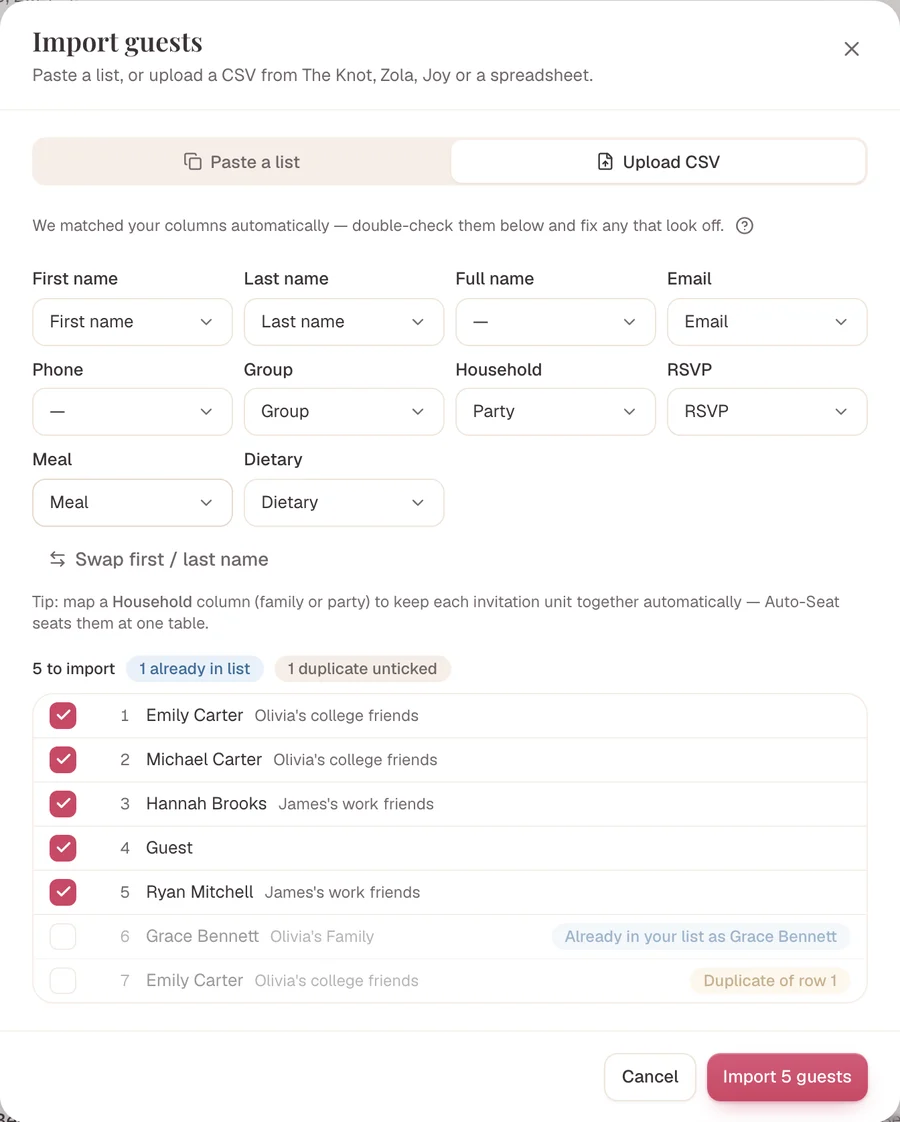
Columns matched before anything is added
Each box in the import window is a Lovely Seating field with your file’s column picked for it. Change any box, swap first and last name, and untick rows you don’t want. Possible duplicates start unticked.
In Lovely Seating
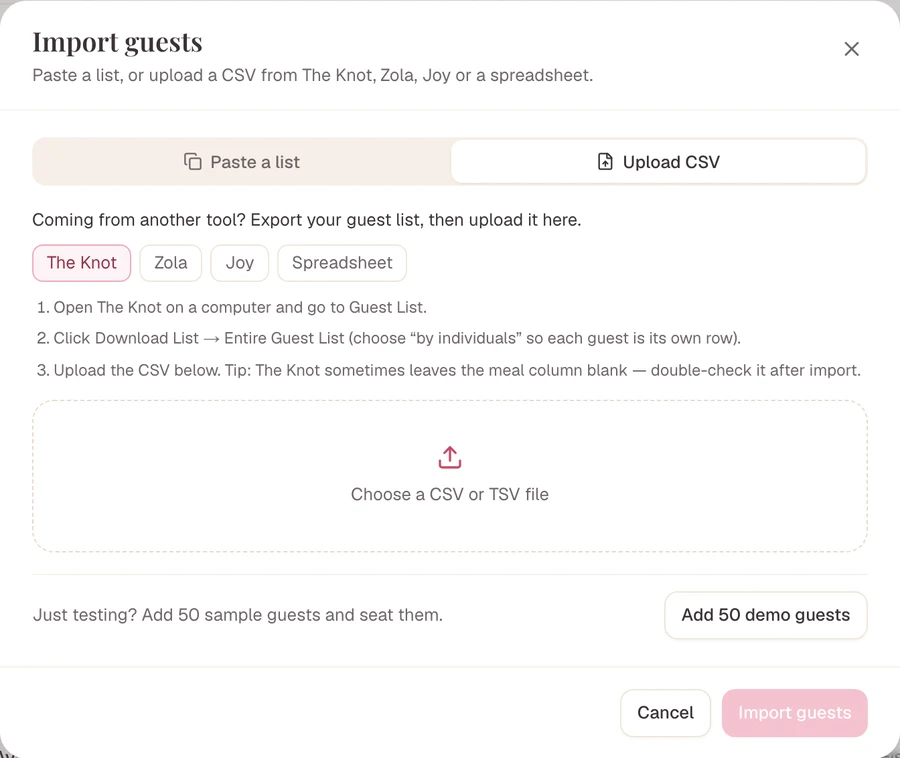
Uploading the CSV to Lovely Seating
The Knot has its own button in our import window, with its export steps beside the upload box. Our help article on importing from The Knot, Zola or Joy covers each field.
Open Guests and click Import.
The Import guests window opens with two ways in: Paste a list or Upload CSV.Choose Upload CSV, then pick The Knot.
Under “Coming from another tool?” the export steps for The Knot open beside the upload box.Click Choose a CSV or TSV file.
Pick the file you downloaded from The Knot.Check the matched columns and the preview.
Guests already on your list are left out, and possible duplicates are flagged.Click Import.
Nothing is added before this click. Then we offer to seat the new guests for you.
Any file
Messy file or several lists? Let AI read it
Kept part of your list outside The Knot, in a spreadsheet or a Word document? AI import reads those as they are, so the whole list can arrive at once.
In Lovely Seating
Hand AI import the file as it is
Choose Let AI do it and upload an Excel, CSV, Word or PDF list, or paste it. It finds households, groups and plus-ones, asks three to five quick questions, then Auto-Seat seats everyone.
Only names and groups go to the AI; emails and phone numbers are set aside on your device first. Each wedding gets 3 AI imports on Free and 10 on Pro, up to 500 guests at a time.
Then seat them
Seating everyone after the import
With your Knot guests in, add tables and let Auto-Seat place them. If you’re starting from scratch, our guide to making a wedding seating chart walks through every step.
In Lovely Seating
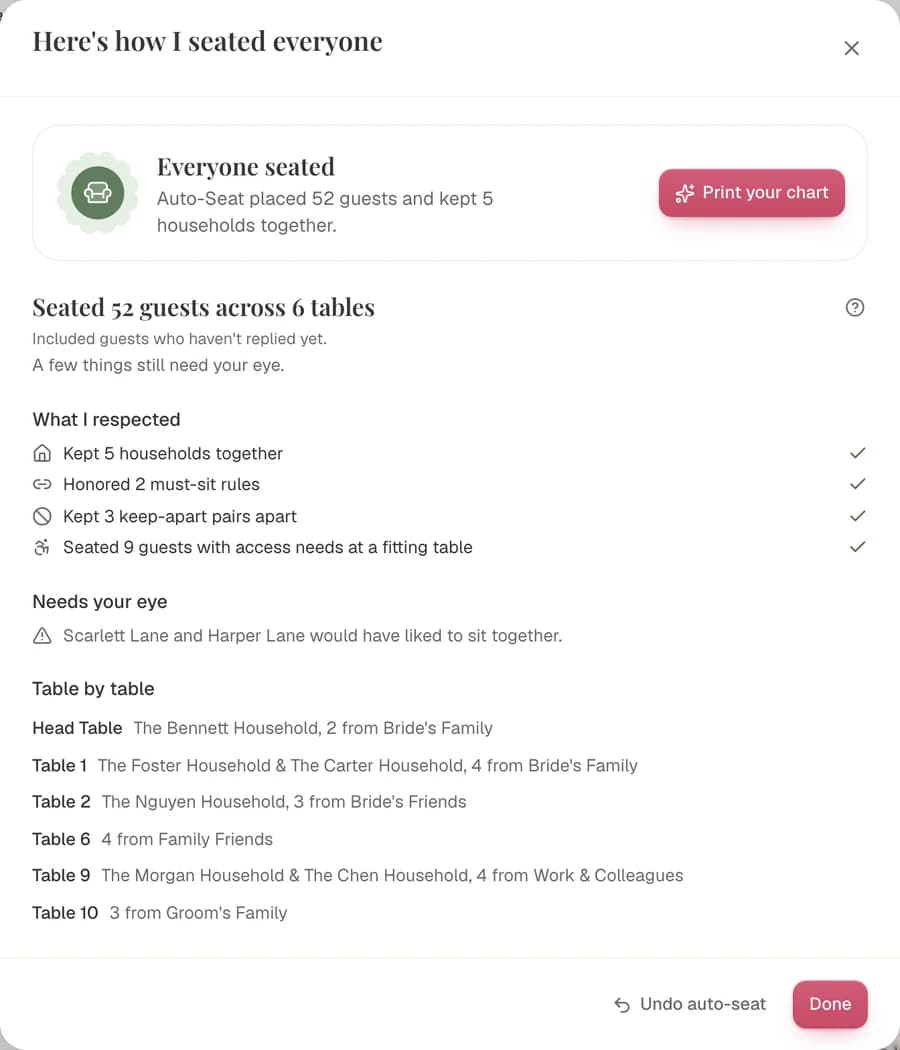
One click seats the whole list
Add your tables, then Auto-Seat places everyone without a seat. Households stay together, keep-apart pairs stay apart and declined guests are left out.
The import, floor plan and Auto-Seat are free. The free plan shows up to 60 seated guests on charts, cards and the guest page; Pro is $39 once and shows everyone.
The other direction
Adding a spreadsheet to The Knot instead
Wondering how to import a guest list into a wedding website? On The Knot, Add Guest takes a spreadsheet. For how The Knot compares on seating, see our Knot seating chart comparison.
Open your Guest List on a computer and click Add Guest.
Choose to import from a spreadsheet in the menu.Give every guest a first and a last name.
The Knot says a blank first or last name causes import errors.Import fewer than 50 guests at a time.
The Knot’s own tip for large lists, if an upload keeps failing.
Guests show as invited but get no alert. They can RSVP once you share your wedding website, and their answers land in your list.
Frequently asked questions
What file does The Knot’s Download List give me?
A .csv file. The Knot’s guest list guide offers three downloads: your entire list as a table, address labels, or a table of RSVP responses. Choose the entire list for seating.
Why are meal choices missing after I import my Knot list?
Our import window warns that The Knot sometimes leaves the meal column blank. Check the RSVP responses download for meals, or set them here with bulk edit in a few clicks.
Can I export my guest list from The Knot app?
The Knot’s help covers adding guests and checking your RSVP tally in the app, but describes no download there. Use theknot.com on a computer, where Download List sits above your guest list.
Will my Knot households stay together?
The Knot organises guests by person and household. When your file has a Party or Household column, it becomes a household here, and Auto-Seat keeps each household at one table.
Does the import keep syncing with my wedding website?
No. The import copies your list as it is today. When new RSVPs arrive, update them here or import a fresh export: guests already on your list are skipped, so only new names are added.
Is importing my guest list free?
Yes. The import, the floor plan and Auto-Seat are free. The free plan shows up to 60 seated guests on charts, cards and the guest page, and a one-time Pro upgrade shows everyone.
Sources
Every fact about The Knot on this page comes from The Knot’s own pages below, which we read on 20 November 2026. Menus change from time to time, so if a button has moved, look for Export or Download on your guest list.
- The Knot: Guest List Manager guide (Download List, its three options, .csv files)
- The Knot Help Center: What is my Guest List Manager? (households, website sync, meal choices)
- The Knot Help Center: How do I set up my Guest List? (Add Guest and spreadsheet import)
- The Knot Help Center: My Guest List won’t import (first and last names, under 50 at a time)
- The Knot Help Center: Custom Questions and Meal Options (RSVP meal questions)

Your Knot list, seated tonight
Upload your Knot CSV, check the columns and let Auto-Seat place everyone. Free to start; Pro is $39 once for every guest.